Resolving contribution errors
Contribution values are validated during each payroll period upload based on:
- The employee's earnings submitted in the upload.
- The payroll category assigned to the employee:
- Qualifying Earnings
- Set 1
- Set 2
- Set 3
For all pensionable salary definitions employers must upload the employee's total gross earnings for each pay period (Column O of the standard import template).
The platform requires the employee's full gross earnings each period to accurately assess Auto Enrolment obligations.
For pension schemes that use Set 1 or Set 2 categories, pensionable earnings must also be supplied (Column T of the standard import template). This enables the platform to validate the pension contributions correctly.
Standard Import Template

Contribution validation errors
If the uploaded contribution is below the minimum expected amount, the system will stop the import during Stage 1 of the validation process and display a contribution validation error.
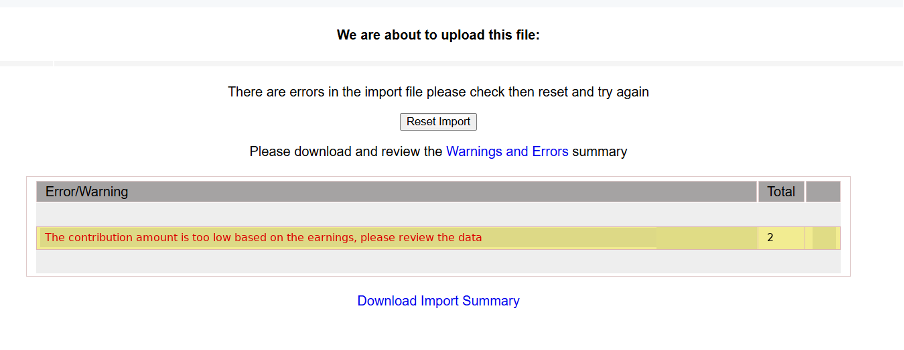
The Warnings and Errors Report will identify the affected employee(s) and provide details of the validation failure.
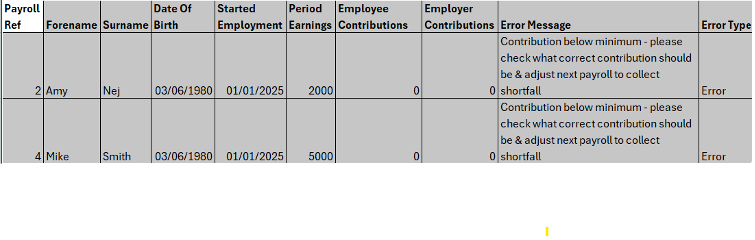
Troubleshooting contribution errors
Review the following areas to identify the cause of the validation error.
1. Is the Employee assigned to the correct payroll category?
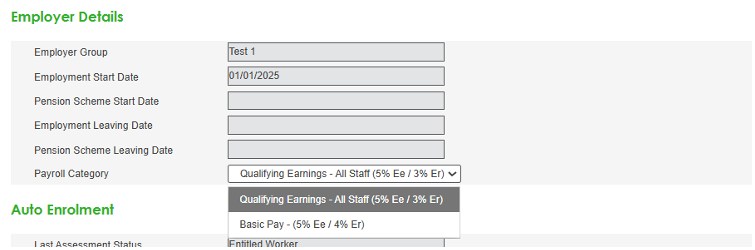
Contribution validation is based on the employee's assigned payroll category. If the employee has been allocated to the wrong category, the expected contribution amount may be incorrect.
How to Check
1. Open Employee Details.
2. Select the affected employee.
3. Locate the Payroll Category field within the Employer Details section.
Resolution
- If the employee has been assigned the wrong category, update by selecting the correct category and then Save.
- If the required payroll category does not exist, submit a request to have the new category created.
2. Are the gross earnings correct?
The platform validates contributions against the employee's gross earnings for Qualifying Earnings and Set 3 categories.
Check the import template to ensure the gross earnings submitted are correct (column O of the standard import template).
Resolution
If the gross earnings are incorrect:
1. Amend the value in Column O.
2. Save the import file.
3. Re-import the payroll file.
3. Are the pensionable earnings correct? (Set 1 and Set 2 only)
Employees assigned to Set 1 or Set 2 payroll categories (where pensionable earnings are not based on Qualifying Earnings or Total Pay) also require pensionable earnings to be available for validation.
How to Check
Navigate to:
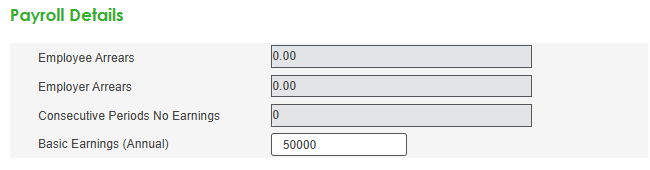
Employee Details > Select Employee > Payroll Details
Review the pensionable earnings held for the employee.
If annual pensionable earnings are incorrect, update the value as required.
Alternatively, pensionable earnings can be supplied/updated within the payroll import by completing Column T of the standard import template.
Depending on what was agreed at implementation, this field should contain either:
- Monthly pensionable earnings, or
- Annual pensionable earnings.
Resolution
Update the pensionable earnings in either:
- Employee Details, or
- Column T of the import file,
then re-import the payroll data.
4. Has Payroll Calculated the Wrong Contribution?
If the category and earnings information held within the portal is correct, but the contribution calculated in payroll is incorrect.
To allow the payroll import to complete:
- Only if you are certain that the contribution amounts meet the standard minimum required, adjust the earnings values within the import file so that the contribution passes validation.
- Import the payroll successfully.
- If there is a shortfall in contributions, ensure that you recover any shortfall or missed employee and employer contributions in the following payroll period by submitting the additional contributions.