If you have uploaded a payroll file and identify that the wrong file has been submitted, or that the information included in the import is incorrect, you may be able to reverse the payroll import.
The Reverse option is only available for one day after the payroll import has been uploaded. If the import is eligible for reversal, the option will be displayed on the Payment History screen by selecting the Payment History tab from the Home screen of the portal.
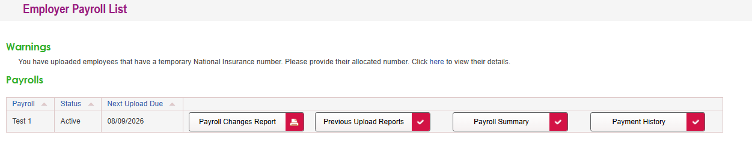
Before reversing an import
Before reversing a payroll import, check that:
- You have selected the correct payment record.
- The payroll import requires correction.
- You have the correct payroll file ready to upload again, if required.
Important: Once an import has been reversed, the action cannot be undone. If required, you will need to upload a corrected payroll file.
How to reverse a payroll import
- Navigate to the Payment History screen.
- Locate the relevant payroll payment.
If the payment is eligible for reversal, a Reverse Import option will be displayed against the payment.
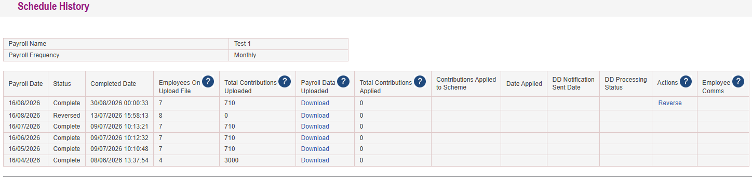
- Select Reverse and follow the on-screen instructions to confirm.
Once completed, the payroll import will be reversed and you will be able to resubmit your data.
If the reverse option is not available
If you cannot see the Reverse option on the Payment History screen, the import may no longer be eligible for reversal.
If further assistance is required, please contact us.